01
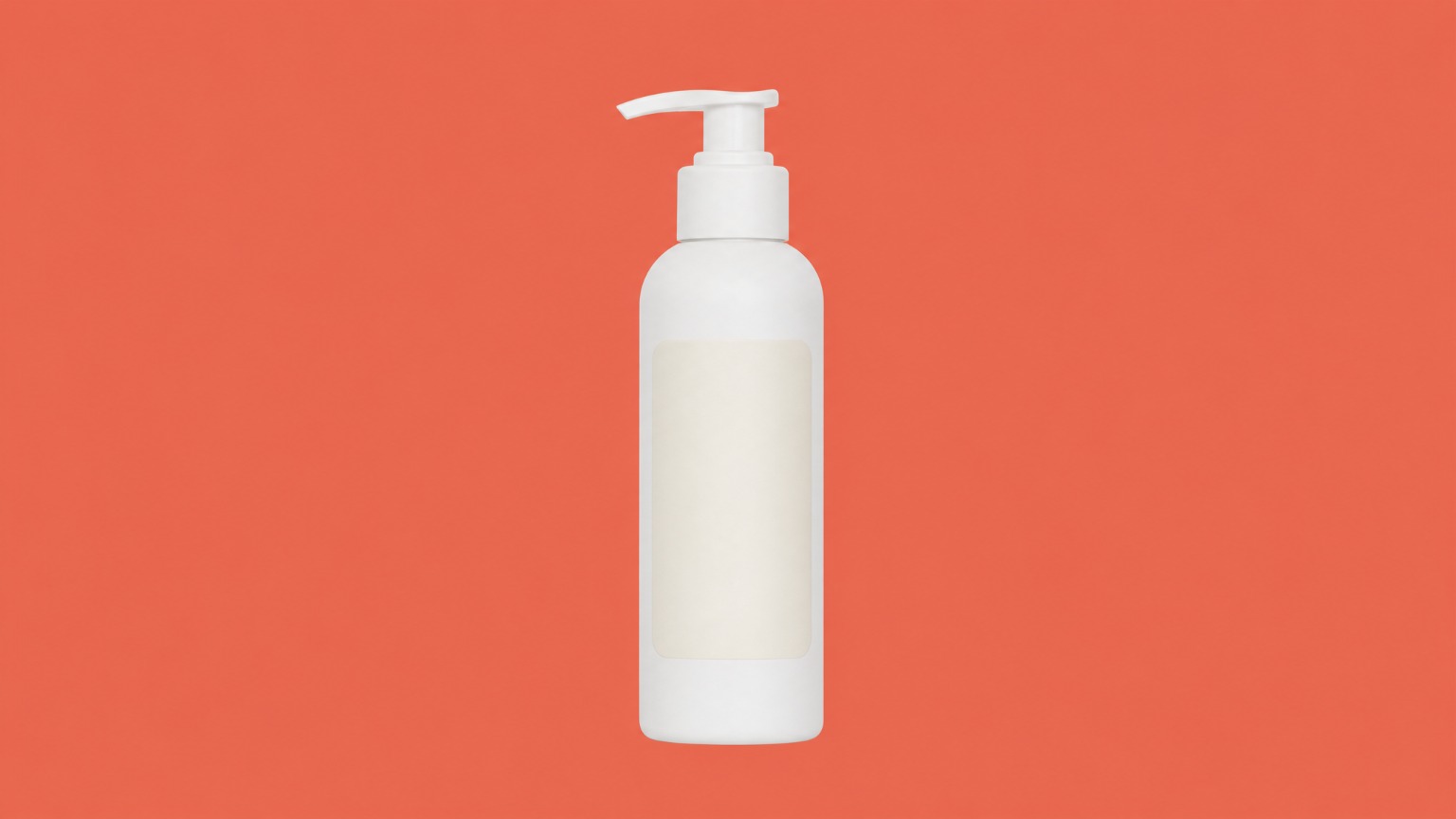
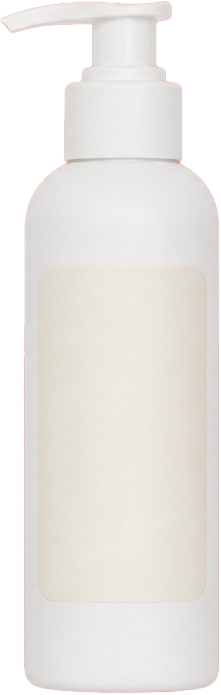
Remove the background. Export a transparent PNG.
For product photos with white or solid backgrounds. Click Remove background, check the transparency, then export a PNG.
 Canvas Editor
Import web images, screenshots or local files. Remove backgrounds, crop, resize, add text and layers, then export. No desktop image editor needed.
Editing tools work without sign-in. Google sign-in is used only to identify your account, show your profile, and purchase or restore Lifetime access.
Choose a tool, see the result and export your file in the current page’s side panel, without switching to another image editor.
For product photos with white or solid backgrounds. Click Remove background, check the transparency, then export a PNG.
 Crop and resize
Choose an aspect ratio, set image or canvas dimensions, then export a version ready to use.
 Text and color sampling
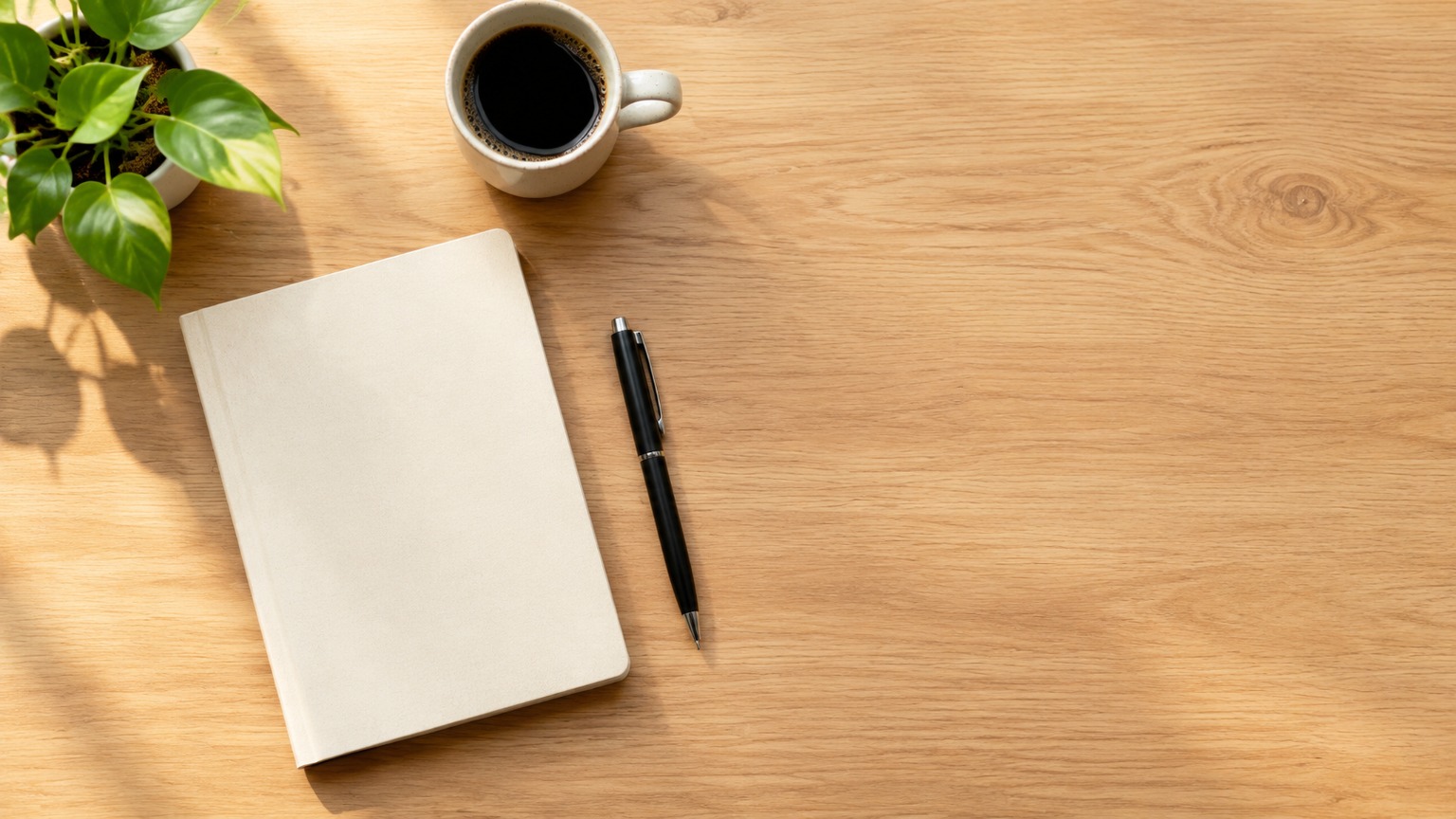
Sample a color from the image, add text, and set its color, position and alignment.
 Capture and export WebP
Drag a selection on the current webpage, keep the area you need, then export PNG, JPG or WebP.
Selections, brushes, fills, text, cropping, layers and export share one workspace. Pick a tool and start editing.
Drag a selection on the current webpage to capture just the area you need.
Select an area with a rectangle, ellipse, polygon or magic wand.
Add and align text. Continue editing with the brush, eraser or pen tool.
Sample a color and fill a selection with a foreground color, background color or gradient.
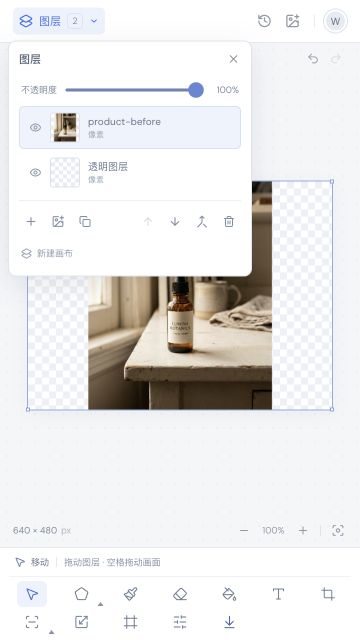
Add, duplicate, hide or lock layers. Adjust opacity and blend modes.
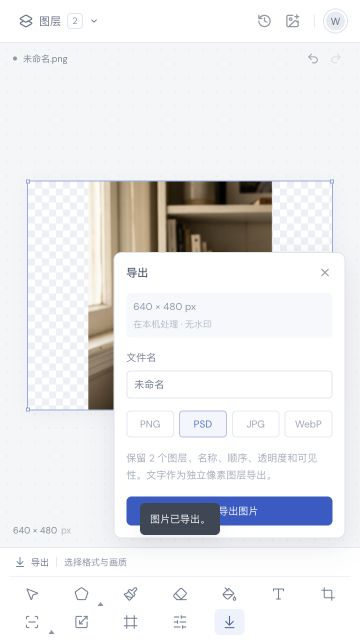
Adjust brightness, contrast and saturation. Export PNG, JPG, WebP or PSD.
Selections have marching ants, layers show their state, and export lists the formats. These screenshots come from Canvas Editor.
Open the full editor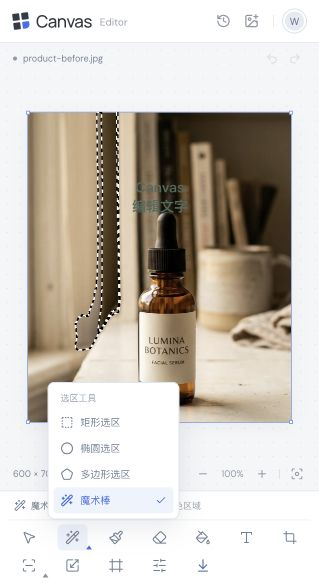
Import an image, make your edits, choose a format and download. Each step happens in the side panel.
Right-click a web image, paste from the clipboard, open a local file or capture part of a webpage.
Use background removal, cropping, magic wand, brushes, text, layers and adjustments.
Export a transparent PNG, JPG or WebP, or a PSD with layers preserved.
Import another image, add text and colors, then hide, lock or adjust each layer’s opacity. Export PSD to keep editing later.
PNG preserves transparency. PSD keeps layers for later edits.
Open the editorEditing, layers, selections and drafts are processed locally. The extension requests page access only when you import a web image or capture a webpage.
All basic editing tools are included.
One purchase unlocks high-resolution export.
For everyday image editing.
For high-resolution files.
One purchase, no monthly fee. AI generation and AI editing are part of the separate Canvas AI service.
All editing tools, layers and exports up to 1280 px on the longest edge are free, with no watermark. A one-time $9.90 Lifetime purchase unlocks high-resolution export.
You can Open the web editor now, or install the Chrome extension. The Chrome extension adds a side panel, web image import and webpage region capture.
Editing and drafts stay in your browser. Images are not uploaded during editing. Clearing browser data may delete local drafts, so export files you want to keep. Sign-in and purchases need a network connection.
Solid-background removal clears connected areas of one color, such as white or colored product backgrounds. It runs locally without AI. It is not intended for complex scenes or fine hair.
Yes. PNG preserves transparency and PSD preserves document layers. JPG and WebP are also supported. Free exports are limited to 1280 px on the longest edge.
Yes. Pay $9.90 once to permanently unlock high-resolution exports in Canvas Editor, including future editor updates. Purchases are linked to your account and can be restored after reinstalling or changing devices. AI services are separate. Purchasing is coming soon.
No. Lifetime unlocks high-resolution exports in Canvas Editor. Canvas AI offers separate AI generation and editing plans.
Basic editing and export are free.